Es mostren els missatges amb l'etiqueta de comentaris jumper. Mostrar tots els missatges

diumenge, 4 d’abril del 2021

Chinese american 104 key keyboard in 105 keyboard countries: key replacement using sharpkeys.

 Chinese american 104 key keyboard in 105 key keyboard countries: key replacement using sharpkeys.


 Els teclats americans son de 104 tecles, mentre que la pràctica totalitat dels teclats dels paisos europeus son de 105 tecles, n'hi ha que més i tot.

Si es compra un portàtil de renting, habitualment son amb teclats europeus, i amb alguns adhesius es pot solucionar, tot i que la forma d'algunes tecles (com l'enter) a vegades no és la que toca.

Si es compra un portàtil xinès, tots venen amb teclat americà (104 tecles) i es perden funcionalitats importants, com per exemple els símbols "<" i ">"

El cas que fa més mal és el del fabricant de tablets CUBE, que fa un teclat de 105 tecles amb un tacte millor que excel.lent, però una de les tecles s'assigna a fer sortir la cadena ".com", i no es pot redefinir per a fer sortir els símbols de la tecla que falta.
 American keyboards are 104 key, while about all european keyboards are 105-key. Some have even more.

When purchasing an ex-corporate used equipment, chances are that they are from european companies, so they are 105-key, and using them in Catalonia will only require some Spanish keyboard labels to attach to keys. Some keys may have different shape (enter), but it's a small issue.

But purchasing a chinese computer is a trouble, since they are 104-key american keyboards, and we will lack some important key, for example the "<" and ">" symbols.

The saddest one is found in CUBE tablet manufacturer, that builds a beyond-than-excellent keyboard with 105 keys, but one is dedicated to write the string ".com", and it is not redefinable.


Spanish 105 key keyboard


American ANSI 104 key keyboard with the keys that cause much trouble. Note that the enter key is different shape, hence, the "ç" is relocated, but the most important issue is that the "<" and ">" key is MISSING. How can I program, or mail, without this key?? Chinese manufacturers, can you see the problem?


Here we are the chinese Jumper ezBook 2 is missing the ">" "<" key


Workarounds I could see in other chinese keyboards: using the FN key


The saddest one: Cube chinese manufacturer, having developed an excellent 105 key keyboard, they use one key to produce the ".com" string, converting it to a 104 key keyboard. Cube, please!


There's a program here to help: Sharpkeys


 El programa sharpkeys, transforma una tecla en una altra. De fet, ho fa el propi windows, a través d'una clau de registre. El que fa el programa sharpkeys, és facilitar escriure aquesta clau de registre.

La idea és agafar una tecla que es faci servir poc, com és la del menú contextual de windows, i convertir-a en la tecla que falta "<" i ">".

Passos:

1: Buscar els Scan Codes de la tecla reemplaçada

2: Buscar els Scan Codes de la tecla a reemplaçar

3: Configurar-ho a Sharpkeys

4: Demanar a sharpkeys que posi la clau de registre

5: reiniciar.
 Sharpkeys program allows to convert a key into another. In fact, it is windows, that does the job, but sharpkeys helps you to write the registry key that does the magic.

We will replace a key that has few use, for the key we are interested. For example: the windows context menú key by the "<" and ">" key.

Steps:

1: Lookup the Scan Codes for the replaced key

2: Lookup the Scan Codes for the replacement key

3: Configure it in sharpkeys

4: Click the "Write to Registry" key to allow sharpkeys do the job

5: restart


Step 1 and 2 Scan Codes:

Find them in this excellent web: http://isometricland.net/keyboard/keyboard-list.php
Scroll down to "Keyboard Scan Codes".


I'll replace the "E0 5D" key (Menú) with the "00 56 Special ISO extra key" that will generate the "<" and ">" symbols that I'm missing, since my american ansi keyboard does not have the key there. (Not to be confused with E0 56)


Step 3: Sharpkeys configuration

Download here: https://www.randyrants.com/category/sharpkeys/


Add a key remapping:


Step 4 and 5: Write to registry and reboot.


Enjoy the new "<" and ">" key in the place of the context menú useless key.
A sticker ends the job.


dissabte, 20 de març del 2021

Jumper EZBook 2 model 464 keyboard repair


 Sembla ser que els teclats dels ordinadors Jumper (també sota les marques Injoo, Vexia, i Primux) de la serie EZBook tenen certa propensió a trencar-se.

Son equips de procedència xinesa i d'un mercat molt econòmic, això es nota en les seves poques capacitats per a poder ser reparats.

El principal problema és que el propi teclat conté la tecla de posta en marxa de l'ordinador, per tant, quan falla el teclat, l'ordinador no s'engega. No obstant, jugant una mica amb el flex del teclat, fent alguna mena de contacte, s'aconsegueix que l'ordinador s'engegi i amb un teclat usb extern es por fer servir, i comprovar que funciona.

Per tant, la reparació necessària és tan sols del teclat.

Vejam com es repara:


 Looks like Jumper EZbook keyboards are prone to failure (Jumper brand is also found under Injoo, Vexia and Primux brands).

These are chinese computers aimed to the cheap consumer. Don't expect them to be easily repairable.

Main issue is that the keyboard contains the power on button. Hence, you can't power on when you have a keyboard issue. Messing with the flex inside the connector you can manage to start the computer and see that nothing else is affected. You can use a usb keyboard to use the computer.

So, the required repair is only the keyboard.

Let's see how to repair Jumper EZbook:


1: Open back cover and remove mainboard


 Desfer els connectors de la bateria, LCD, teclat, touchpad, plaqueta de USB i auriculars i desoldar els cables dels altaveus i del micròfon.

 Unfasten battery connectors, LCD, keyboard, touchpad, usb+headphones assembly, and unsolder the speaker and microphone cables.


2: Remove LCD and battery.


 Desmuntar la plaqueta del usb i auriculars, desenganxar la bateria, que està enganxada amb cinta adhesiva i desmuntar tota l'assembly de la pantalla.


 Remove the usb+headphones assembly, remove battery (adhesive tape) and remove the whole screen+hinges assembly


3: Remove the keyboard cover and the keyboard assembly


 Aquesta és la part dificil: el teclat no està fet per a ser desmuntat: està dins d'una tapa metàl.lica que està muntada i soldada amb plastic fos, a la carcassa de l'ordinador.

Per tant, caldrà trencar tots els punts de soldadura, i després refer-los amb cola epoxi.
 This is the difficult part: keyboard is not meant to be repairable. It is inside a metal cover that is soldered, through melted plastic supports, to the plastic notebook palmrest cover.

Hence, we will need to crack all these solders, and redo later with epoxi.


4: Install replacement keyboard


 Hi ha dues versions d'aquest ordinador. Es diferencien per el tamany de la tecla que hi ha sobre l'enter. En el meu cas és la versió que a Aliexpress anomenen com a "new version".

Cal dir, que aquest és un Ezbook 2 amb un processador x5-z8300, i que és identificat en molts casos com un "primera edició".

El recanvi que cal comprar és el que s'indica al flex del teclat. En el meu cas posava MB3002003US

Durant la col.locació, cal refer els punts de soldadura

1) Superglue (cianoacrilat). Una petita gota de cola penetrant farà soldadura a la part que no és accessible. Posar-ne molt poca! Esperar 30 min per secar.

2) Araldit (epoxy). una gota gens penetrant, farà de soldadura per la part posterior. Deixar secar 2 hores.

Seria més senzill si ho haguessin fet amb cargolets, enlloc de soldadures de plàstic.
 There are several versions of this computer. You can see the key over the enter key, that sometimes is larger that other. In my case, Aliexpress said this is the "new version"

My Ezbook 2 has a x5-z8300 and is the new version. Not to be confused with the x5-z8350.

The final word is the part number shown in the keyboard flex: mine is: MB3002003US

New parts will need to be "resoldered" using glue:

1) Use Superglue (cianoacrilate). A VERY SMALL amount of superglue, being very penetrating glue, will help to attach the keyboard to the cover. Wait 30 minutes to allow for curation.

2) Use Araldit (2 component epoxy) not very penetrating to redo the solder points at the back. Allow 2 hours to cure (read glue manufacturer manual)

It would be probably easier if they used screws instead of melting plastic.


Superglue penetrating glue. Very small amount.

2-component epoxy to create a solder point.

Solder points done. Waiting for curation.

Install cover, place a weight on the cover. 
Dell heavy computing :-)

Again: a small drop of superglue to attach the inner part of the cover.

2-component epoxy to recover the solder point.


5: Reassemble


 Una vegada esperat el temps requerit pel fabricant de la cola epoxy, ja es pot muntar l'ordinador.

 Once the epoxy glue is cured (see glue manufacturer manual), we can reassemble the computer.


Palmrest recovered with a new keyboard.

Make sure this metallic adhesive tape is well attached to the cover. Nobody wants a short in the mainboard.

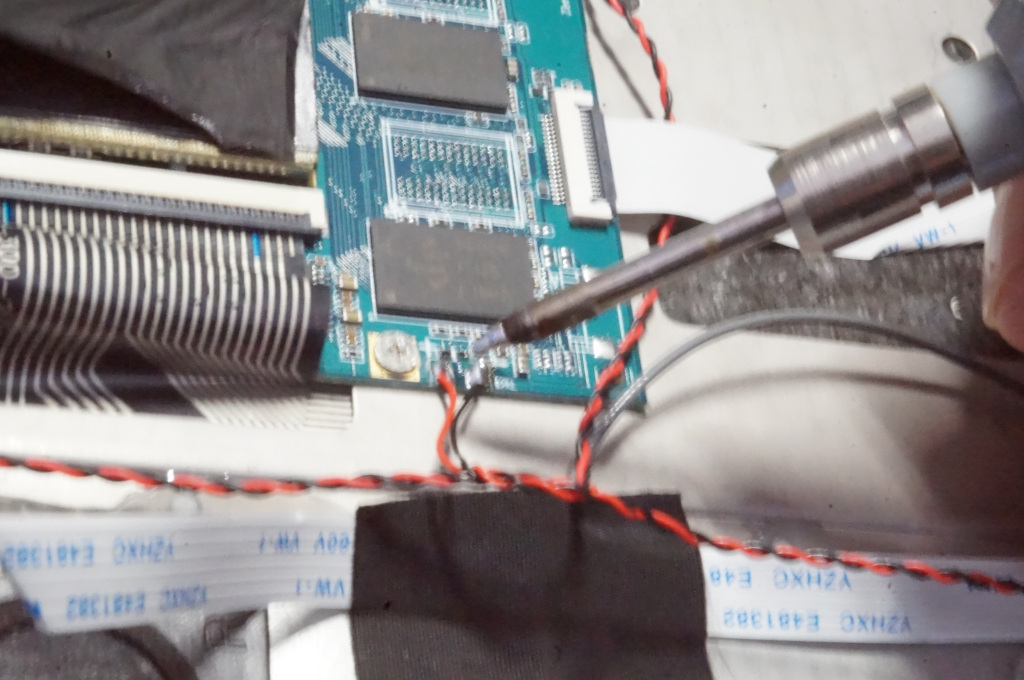
Resolder the speakers cables and the microphone.

Reattach the battery to the keyboard cover using new strong adhesive tape.

Reinstall LCD assembly and refasten all the flex cables. Finish with the battery connector.

EZBook 2 model 464 recovered!


 Un altre aparell que ha deixat de ser residu electrònic per a tornar a fer servei.


Materials i eines:

- Tornavis miniatura i palanca d'obrir carcasses de plàstic.
- Soldador electrònic i fil d'estany
- Cutter
- Superglue (cianoacrilat)
- Araldit (epoxy)
- Cinta americana per aguantar la bateria

 Another electronic device that will be saved from electronic waste. 


Materials and tools:

- miniature philips screwdriver and plastic pry tool
- Electric solder and tin/lead solder wire
- Cutter (precision knife)
- Superglue (cianoacrilate)
- 2-component epoxy
- strong adhesive tape to attach the battery.